
Appearance
Linking and Cascading Filters
A filter affects only the components checked under Actions → Interactions → Linked components. Other filters on the page can follow it too, so that their lists show only the values that are still available (cascading).
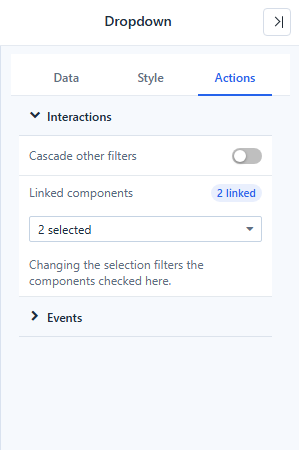
Link a filter to components
- Select the filter and open Actions → Interactions.
- Open Linked components and check the targets. The badge shows how many are linked, for example 2 linked.
- Preview the report, change the filter and check each target.
A component on another analysis model can be linked when that model has the filtered field. Leave a headline KPI unlinked if it must always show the unfiltered total.
The Date component uses Filter all components instead of a manual list by default; see Date.
Cascade filters
Turn on Cascade other filters in a filter's Interactions to add every other filter on the same analysis model to its Linked components in one step. Filters that already filter this one (which would create a loop) and filters bound to a parameter are skipped. Turning the switch off removes those filters again.
The switch is available on Dropdown, List box, Button group, Radio/Checkbox, Paginate and Search.
When a reader changes an upstream filter, each downstream filter first reloads its members under the new condition:
- Selections that still exist are kept; selections that no longer exist are removed.
- A downstream filter left with no selection filters as All, or takes its first item when it is a required single selection.
- The charts then query once, so they do not flash an empty state in between.
Selections in filters on hidden tabs, and filters whose member query fails, are not checked and are cleared instead.
Example: Region narrows City
- Add a Dropdown on Region and a Dropdown on City, both on Retail Chain Operations.
- On the Region dropdown, turn on Cascade other filters.
- In Preview, choose East China. The City list now shows only East China cities; a city chosen earlier stays selected if it is in East China.
Long member lists
Dropdown, List box, Button group and Radio/Checkbox load at most 1,000 members: the first 1,000, or the most recent 1,000 for time fields and Last defaults. The list ends with Showing the first 1,000 of 10,181 items. Type to search all. In a Dropdown or List box, typing searches all members on the server (respecting the other filters) and shows up to 1,000 matches; search stays available on a cut list even when the search box is turned off. The limit cannot be changed.
The Hierarchy table filter loads 1,000 members per level and adds Show more at the end of a level.
Values that are no longer in the data
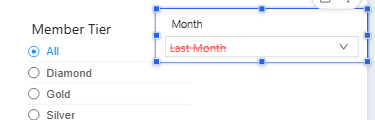
When a saved selection or default no longer exists in the data, the filter keeps it, still applies it, and shows it in red with a strikethrough. The tooltip reads No longer among the available values, but still applied as a filter. Untick it to remove it.
A relative period with no member in the data, such as last month before that month has been loaded, is shown the same way and still applied, so the charts show no data. Its tooltip reads No member for this period in the current data; the period is still applied as a filter.
Diagnose an unexpected result
| Symptom | Check |
|---|---|
| A chart does not change. | The chart is not in the filter's Linked components, or its model lacks the field. |
| A chart shows No data under the current filters. | Click View conditions, or hover the chart and open Conditions, to see every condition applied; the combination may have no rows, or a relative default may point to a period with no data yet. |
| A summary changes unexpectedly. | Remove it from the filter's Linked components. |
| A downstream filter lost its selection. | The value no longer exists under the upstream selection. |
| A value is shown in red with a strikethrough. | It is not in the current data, but still applied. See Values that are no longer in the data. |
| A member cannot be found by scrolling. | The list stops at 1,000 members. Type in the search box, or add an upstream filter. |
| Changing a filter does not refresh the charts until a button is clicked. | The page has a Filter button with Action → Apply. |
| A parameter is greyed out in a filter's parameter list. | Hover it for the reason; see Bind Filters to Parameters. |
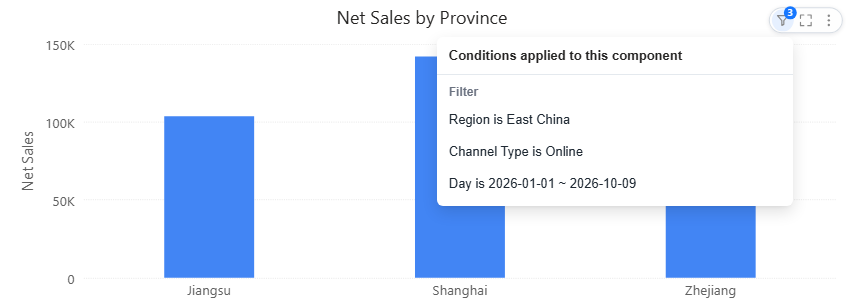
For how filters combine with component filters, chart clicks and drilling, including two conditions on the same field, see How Filters, Clicks, Drilling and Parameters Combine. For filters across different models, see Cross-Model Analysis.