
Appearance
Managing High Concurrency
An installation administrator can increase the number of AI Agent analysis workers when questions are waiting in a queue. Configure the count on the server, in the installed Agent's .env file.
This guide covers the packaged deployment with the supplied startup scripts. The current scripts support 1–8 dispatch workers, with 2 workers by default. Worker count is a manual deployment setting. There is no worker-count control in Ops, LLM, or the console's AI Agent settings.
1. Increase the worker count
Use this procedure when analysis tasks are backing up and the model service, Datafor backend, and server still have capacity.
Before changing it
- Obtain access to the server account that manages the Agent installation. Console administrator access alone does not give access to server files.
- Find the installed
ai-agentdirectory containingapp-console.batorapp-console.shand theai-agent-dispatch-workerexecutable. Use the deployment directory, not a frontend configuration directory. - Record the current worker setting so you can restore it. Schedule a low-traffic window and let active questions finish: restart stops the API and workers and can interrupt active analysis.
Edit the deployment configuration
Open .env in that directory. Create it as a plain-text file if it does not exist. Add or update this single line:
AI_AGENT_DISPATCH_WORKERS=3Raise the count one step at a time, for example from the default 2 to 3. Keep all other existing settings. Save the file as UTF-8 without a BOM, with the exact name .env, not .env.txt. Keep only one entry for this key.
| Setting rule | Behavior |
|---|---|
| Valid values | Whole numbers from 1 to 8, inclusive. |
| No setting | The launcher starts 2 dispatch workers. An explicit 1 starts one. |
| Invalid value | A nonnumeric or out-of-range value, such as two, 0, or 9, causes a warning and a fallback to 2. |
| Configuration precedence | A nonempty environment variable inherited by the startup script takes precedence over .env. |
| Scope | Changes dispatch workers only. The supplied launcher keeps one API instance and one routing worker. |
If your operating-system service or startup environment already defines AI_AGENT_DISPATCH_WORKERS, update that value as well or remove the override. Otherwise, editing .env will not change the effective count. Do not edit instance-secrets.env to change capacity.
Restart the Agent processes
Run the command for your operating system from the installed ai-agent directory, using the normal service-management account.
Windows — PowerShell or Command Prompt
.\app-console.bat restart agentLinux — shell
./app-console.sh restart agentThe agent target restarts the Agent API, routing worker, and configured dispatch workers. It leaves the separately managed MCP process running; Agent requests through MCP still depend on the restarting backend.
The MCP process keeps the values it read from instance-secrets.env when it started. After a change there, for example to the shared secret (see AI Agent Shared Secret), run restart without a target (.\app-console.bat restart or ./app-console.sh restart). It restarts the Agent first and then MCP, so both load the new values.
If your installation is managed by an external service supervisor, use its approved restart procedure and ensure that it invokes the supplied launcher with the intended environment. Do not start a second, separately managed copy of the deployment.
Applying increases and decreases
The supplied start action brings missing processes up to the configured count. It does not stop healthy extra workers when you reduce the count. Use restart agent for a repeatable configuration change, especially when scaling down.
Verify the change
- Check the startup output for the expected dispatch replicas and any fallback or startup errors. Re-running
start agentwith the same configuration reports the current count if all expected instances are already running; it can also start missing instances. - Check current log timestamps in
ai-agent/logs/. With two workers, expect bothai-agent-dispatch-worker.logandai-agent-dispatch-worker-2.log, plus their corresponding-err.logfiles. Old log files alone do not prove that workers are running. - Check the health endpoint as described in section 4.
- Submit a small set of representative questions from separate user sessions or chats. Confirm that answers complete and that the backlog clears when submissions stop.
Packaged components can appear as a parent and child with the same executable name. Two matching processes in Task Manager do not necessarily mean two workers; use the launcher's instance count and fresh replica logs.
To roll back: restore the previous valid value in .env and any startup-environment override, then run the same restart command and repeat verification.
2. Understand what more workers change
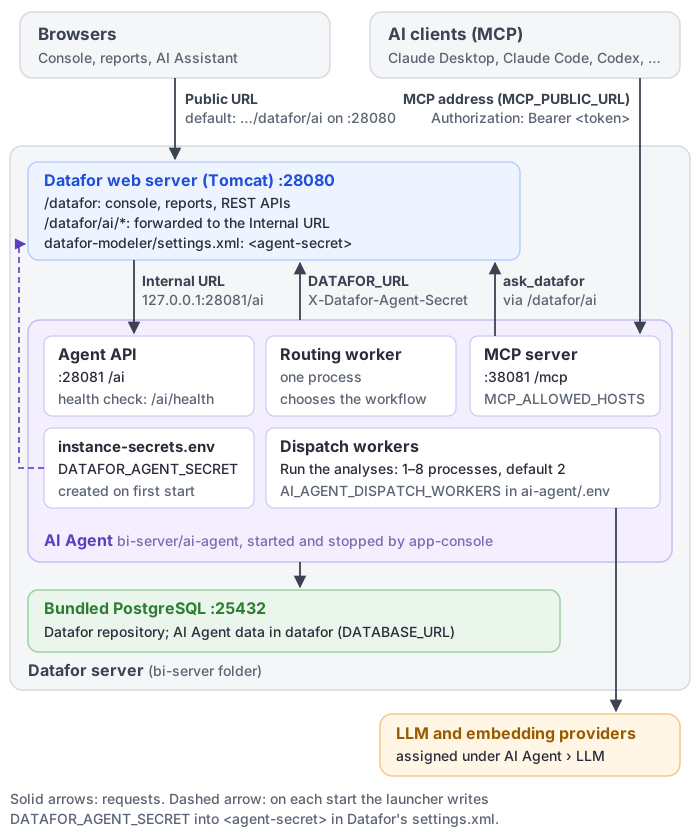
The API accepts a question and records work. A routing worker selects the workflow when routing is needed. Dispatch workers perform the analysis work, including waiting for model responses and Datafor query results. Each dispatch worker handles one claimed task at a time; excess work waits in the queue.
More dispatch workers can reduce waiting behind other analyses. They do not make an individual model response or database query faster. One question can require several model calls, and a complex analysis can execute multiple queries, so worker count is not a model-request limit or a database-connection limit.
Distinguish these three quantities:
| Quantity | What it tells you |
|---|---|
| Signed-in users | How many people have sessions. Idle sessions do not each occupy an analysis worker. |
| Questions submitted per minute | The sustained arrival rate the deployment must handle. |
| Simultaneous analysis work | The work competing for workers and downstream resources right now. |
For example, many users reading previous answers can place less analysis load on the system than a small team submitting complex questions together. Size the deployment for the expected peak submission rate and question mix, not the number of accounts.
Increasing LIMIT_CONCURRENCY does not add analysis workers: it controls HTTP concurrency. Changing an LLM profile parameter also does not change the number of dispatch processes.
Time limit of multi-step analyses. The query steps of one multi-step analysis have a time limit per channel: 180 seconds for the AI Assistant and embedded applications, 120 seconds for MCP clients that request the full analysis. At the limit, finished steps are returned as a partial answer. The defaults rarely need changing. To change them, add this line to the same .env file and run restart agent:
AGENT_VNEXT_INVESTIGATION_EVIDENCE_DEADLINE_SECONDS=ui=180,embed=180,mcp=120Each value is 1 to 3600 seconds, or 0 for no limit. Once the variable is set, a channel it does not list has no limit. A longer limit lets more steps finish, and users wait longer for those answers.
Knowledge-index builds. Builds send embedding requests to the embedding provider in batches. All builds that run at the same time in one AI Agent process share one limit on requests in flight, AGENT_EMBEDDING_CONCURRENCY (default 2, minimum 1). Lower it to 1 when the provider rejects requests for rate limits; raise it only when the provider allows more parallel requests. Set it in the same .env file and run restart agent.
3. Choose a count by measuring
There is no universal “users per worker” or CPU/RAM specification for every analysis model and LLM provider. Treat 8 as the startup script's supported maximum, not a recommended default or a guarantee that every server can run eight workers effectively.
Compare counts under the same load:
- Record successful answers per minute, submission-to-answer time and the queue (section 4) at the current count, with a realistic mix of simple questions, follow-ups and complex analyses.
- Raise the count one step (for example
1 → 2, then4) and repeat with the same models, LLM assignments and submission rate. Check that the queue drains after submissions stop. - Keep the smallest count that meets your target. Stop increasing when throughput no longer improves, failures rise, or the model provider, Datafor, the database, CPU or memory becomes the bottleneck.
Check the resources that workers share
| Resource | Check while increasing workers |
|---|---|
| LLM and embedding services | Provider request/token allowances, rate-limit responses such as HTTP 429, and timeouts. Several Agent stages or applications may share the same provider account allowance. |
| Datafor and analytical data sources | Query duration, backend timeouts, database CPU and I/O, and whether ordinary reports also become slower. |
| Agent host | Memory use, CPU, and process restarts. Additional processes consume additional resources even while waiting for remote services. |
| Agent PostgreSQL database | Active connections, connection errors, and slow database operations. Worker processes maintain their own connection pools. |
If reports and AI share infrastructure, include normal report traffic in your capacity test. Where your operations schedule permits, move heavy knowledge-index rebuilds or other batch work away from peak interactive use.
4. Monitor response quality and queue health
Review Usage in the console
- Sign in as an administrator and click AI Agent in the left navigation.
- Click Ops, then Usage.
- Select Today, Last 7 days, This month, or Custom, then click Refresh.
| Indicator | How to use it |
|---|---|
| Questions | Track activity in the selected period. This is not a count of concurrently running questions or completed answers per minute. |
| Success rate | Check whether higher load coincides with more unsuccessful finished runs. Small samples appear as succeeded/finished counts, such as 3/3. |
| Response time / p95 | Compare recorded run durations for similar workloads. The main value is the median, or p50. |
| Total tokens | Track model usage, including the input/output split. Use your provider's billing tools for actual charges. |
Measure the user wait separately. The current Response time card is calculated from recorded run trace durations. It is not a dedicated measurement of the entire interval from clicking Submit to seeing an answer, including all queue waiting. For a capacity test, time that interval explicitly and pair it with the queue observations below. Usage also does not display the number of worker processes.
Check the queue from the server
Run this locally on the Agent server. Replace the port if your installation uses a different SERVER_PORT.
Windows
curl.exe --include --silent --show-error --max-time 10 http://127.0.0.1:28081/ai/healthLinux
curl --include --silent --show-error --max-time 10 http://127.0.0.1:28081/ai/healthThe response reports database reachability and separate queues.routing and queues.dispatch objects. Read the fields together and compare several observations during a busy period:
| Field or result | Meaning and next action |
|---|---|
| HTTP 200 | No health fault was detected at that instant. This does not prove every configured worker is running or that response times meet your target. |
pending | Queued work. A short burst is normal; a sustained increase means work is arriving faster than it is being cleared, or processing is failing. |
inProgress | Claimed work, not a live process count. An idle, healthy worker does not add to this number. |
dueAgeSeconds | How long the oldest pending item has been ready to run. Use its trend to judge whether waiting is increasing. |
oldestAgeSeconds | Age since creation of the oldest live pending item. A persistently old item can indicate repeated retries. |
expiredLeases | Work whose processing lease expired. Check worker exits, restarts, and resource problems. |
parked | Work scheduled far in the future, excluded from the live pending/age measures. This value alone is not a reason to add workers. |
stalled: true or HTTP 503 | Investigate worker, database, migration, or queue problems before treating the condition as normal capacity pressure. |
stalled can reflect old ready work with nothing in progress, very old pending work, or an expired lease. It does not exclusively mean “no workers are running.” A 200 response with growing pending can still mean users are waiting too long.
5. Daily quotas
A daily question quota limits how many questions each user asks per day; it does not limit simultaneous questions or reserve a worker. See AI Operations and Quotas.
6. Troubleshoot before adding more workers
| What you observe | What to check or change |
|---|---|
Dispatch pending and waiting time grow, but work is completing and downstream resources have headroom | Test a higher dispatch-worker count. Compare throughput, user wait, and failures at the same load. |
| Routing queue grows while dispatch is lightly used | Check routing-worker logs and its model service. Adding dispatch workers does not increase routing capacity. |
| One question is slow even when no other work is queued | Investigate model response time, query duration, retrieval, and question complexity. More dispatch workers will not remove that question's processing time. |
| Provider rate-limit errors or timeouts increase after scaling | Return to the previous worker count. Check the provider allowance and other traffic sharing it before increasing again. Distinguish provider limits from a user's daily quota message. |
| Datafor reports also slow down | Check shared query resources and database capacity. Keep a worker count that leaves capacity for normal reporting. |
| Questions stay queued and workers show no activity | Inspect startup failures and fresh worker logs; use the supplied launcher to restore missing processes. Do not assume that opening the Assistant page proves the workers are healthy. |
.env was changed but only one worker starts | Check the actual installation directory, .env.txt mistakes, invalid values, inherited environment overrides, startup output, and whether this package includes a launcher supporting the setting. |
| Reducing the count did not stop extra workers | Apply the lower value using restart agent; start agent only brings missing processes up. |
Logs are under the installed ai-agent/logs/ directory. Start with ai-agent-dispatch-worker.log and ai-agent-dispatch-worker-err.log; replica 2 uses ai-agent-dispatch-worker-2.log and ai-agent-dispatch-worker-2-err.log. Routing uses ai-agent-routing-worker.log and ai-agent-routing-worker-err.log.
For support, record the product version, configured worker count, affected time window and time zone, arrival rate, queue observations, failure messages, and representative run IDs. Share relevant log excerpts with sensitive content removed. Do not include .env, instance-secrets.env, passwords, or API keys.
7. When one installation is not enough
This setting scales workers within the supplied deployment; it does not enable a multi-server cluster or automatic scaling.
Related guides: Enable the AI Feature, LLM Configuration, and Preparing Data for AI.