
Appearance
Units and Display Scale
Use Unit to describe what a measure represents, and Display scale to make large values easier to read. Set them on a measure in the modeler, then check how a report displays that measure.
For example, a sales amount can have unit USD and display scale M. The amount is still measured in US dollars; the report displays it in millions.
Understand the three settings
| Setting | What it controls | Example |
|---|---|---|
| Unit | The business meaning of the value. | USD, orders, days, or kilograms. |
| Display scale | The model's default display magnitude for reports. | M displays a numeric value divided by 1,000,000, with an M suffix in English reports. |
| Data Format | The number format of the measure. | #,##0.00 for a number with two decimal places, or 0.0% for a percentage. |
These settings do not convert source data or change a formula or aggregation. Changing USD to EUR does not convert dollars to euros. If the source already stores amounts in thousands, selecting K would scale those numbers again. Define the measure in the intended base unit before choosing its display scale.
Set a measure's unit and display scale
You need permission to edit and save the analysis model.
- Open Models in the console and open your model.
- In Analysis model → Measures, expand the measure group and select a measure, such as Net Sales. You can also configure a calculated measure.
- In Business semantics → Unit, search for the unit and select the matching option. For an amount already expressed in US dollars, search for USD and select US Dollar.
- In Core, check Data Format, then choose Display scale directly below it.
- Click Save. Open or reload a report that uses the model to check the result.
The examples in this guide use a separate model named Units and Scale Example. Use an equivalent measure in your own model.
Choose a unit
The picker accepts codes and familiar names. The selected label can differ from the stored code: for example, USD is displayed as $ in the English interface.
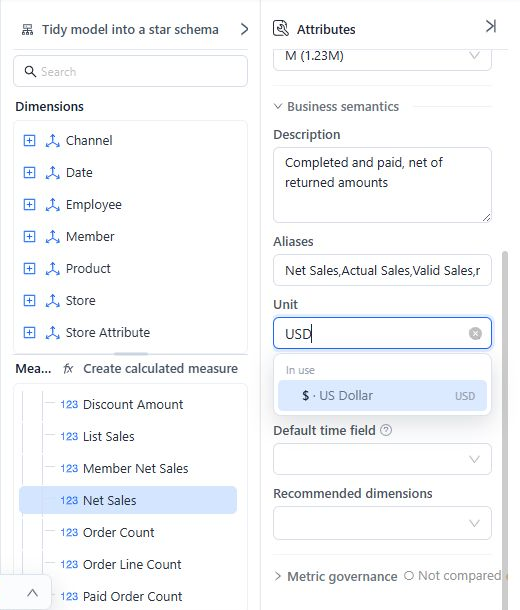
| Search for | Standard unit | Typical measure |
|---|---|---|
| USD or dollar | US Dollar (USD) | Net Sales |
| EUR or euro | Euro (EUR) | Operating Cost |
| orders | Orders ({order}) | Order Count |
| days | Days (day) | Delivery Time |
| kg or kilogram | Kilograms (kilogram) | Shipment Weight |
| MB or megabyte | Megabytes (megabyte) | Data Volume |
| percent or % | Percentage (%) | Gross Margin Rate |
Previously used units appear under In use. Other choices are grouped under Currency, Ratio, Count, Time, Quantity, and Data. Search by currency code when a currency is not in the initial list.
For a business unit outside the standard choices, type a descriptive term such as pallets, then select Custom unit: “pallets”. Custom text is not translated. Use a consistent spelling and explain unfamiliar units in the measure's Description.
Choose a display scale
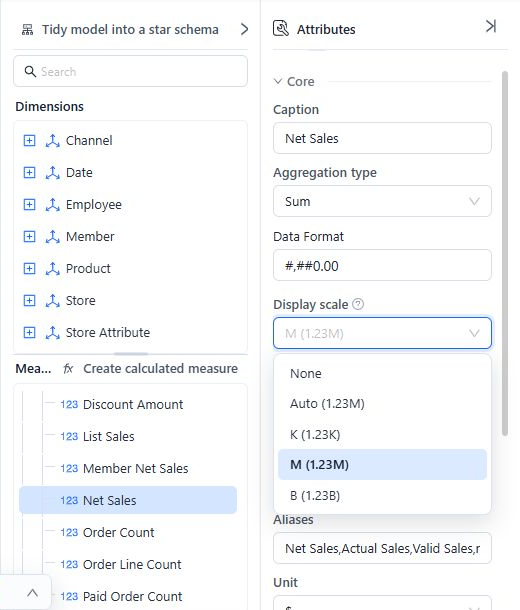
| Option in the English interface | Report behavior | When to use it |
|---|---|---|
| None | Adds no model scaling default. Other report formatting still applies. | Unit prices, detailed amounts, and values that should retain their full magnitude. |
| Auto | Adds no fixed scaling default to the report. Existing number formatting and automatic chart-axis scaling continue to apply. | Letting each report control its presentation. |
| K | Scales by 1,000. | Order volumes or amounts in thousands. |
| M | Scales by 1,000,000. | Revenue or cost in millions. |
| B | Scales by 1,000,000,000. | Very large totals in billions. |
The dropdown includes sample labels such as M (1.23M). The sample beside Auto is not a promise that every card or table will use compact notation.
With a fixed model scale, reports use at least two decimal places; a model number format with more decimal places retains that precision. For example, 1,234,567.89 with M and a two-decimal format displays as 1.23M.
Understand the result in a report
The model scale supplies a default for measures that have no explicit number format on the report component. An explicit report format takes precedence.
In the example below, both cards use Net Sales = 5,094,084.39 from the same model:
- The left card inherits M and displays 5.09M.
- The right card has an explicit report format with no scaling and displays 5,094,084.39.
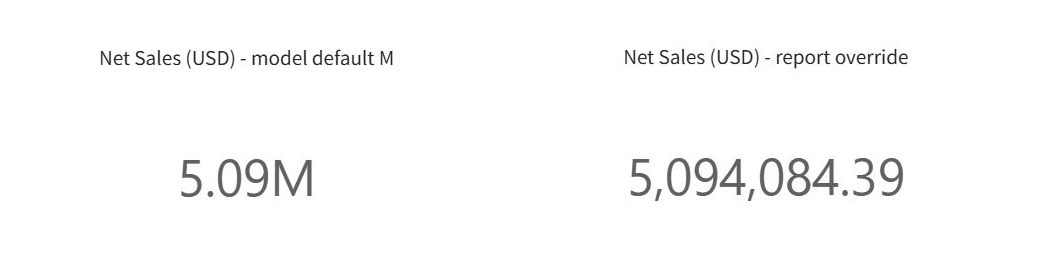
The USD text in the card titles was added to identify the currency. Setting the model's Unit does not automatically add a currency symbol to every chart value. Use a clear title, or a report format's Prefix or Suffix, when the displayed value needs that context.
Override the scale on one component
To show the full amount on a measure card:
- Select the card and open Data.
- On the assigned measure, click More (⋮) → Format.
- Select Numeric type.
- Set Unit to None and Decimal places to 2. Turn on Thousands separator for easier reading.
- Click OK, then save the report.
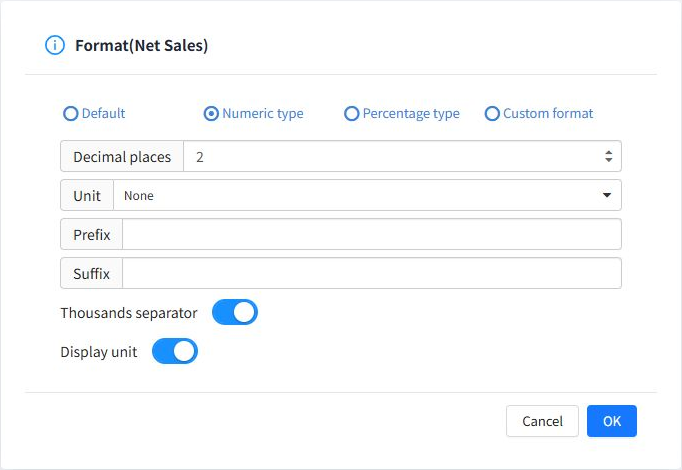
Unit in this report dialog means the display magnitude. It is separate from the model's business unit, such as USD or orders.
To remove the report override, reopen Format, select Default, and click OK. The model default can then apply again. The dialog may show Default while the rendered value uses the model's M scale.
Check charts with a shared axis
For bar, line, area, and scatter charts, the model scaling default is applied only when the measures without explicit report formats resolve to the same display scale. For example, Revenue = M and Order Count = K do not supply a consistent default for a shared axis.
Use separate components for measures with different meanings, or configure their report formats deliberately. Tables and measure cards apply defaults to each measure independently.
Component display units
Charts, measure cards and gauges also have Display units in their Style tab. They work on top of the model scale:
| Component Display units | Result with model scale M |
|---|---|
| Follow measure format | Shows the model-scaled text, such as 5.09M. |
| Auto | Keeps the model's M. Without a model scale, Auto picks K, M or B from the size of the values. |
| Thousands (K), Millions (M), Billions (B), None | Replaces the model scale on this component. |
See Display Units and Decimal Places.
Format percentages correctly
Use Unit = % to identify a ratio and a percentage Data Format to display it. For example, a margin value of 0.185 with format 0.0% displays as 18.5%.
A percentage format already multiplies the displayed value by 100. A source value of 18.5 is not automatically converted to 0.185 when you choose the percent unit. Check the measure's formula and source representation.
Leave Display scale at None for percentages. Percentage number formats are excluded from model scaling.
Use the model across languages
Standard units are stored as common codes and their labels follow the user's interface language. A different label does not mean the unit or the data has changed. Custom units remain as typed.
Available scale choices also depend on language. Some interfaces offer 10k or 100M in addition to thousands, millions, and billions. English reports do not apply those two fixed model defaults; existing report formatting and chart-axis behavior remain in control.
For reports used across languages, prefer K, M, or B, and review the result in the intended viewing language. Avoid putting an abbreviation such as “million dollars” into a new unit definition when you can select USD and M separately.
Older models may contain combined text such as million USD. The modeler can interpret recognized combinations as a unit plus a scale. Check both fields before saving a change, especially when the source itself already contains scaled amounts.
Use units in Metrics Library and AI
Metrics Library → New metric and the metric editor use the same unit picker. Metrics Library has a Unit field but no separate Display scale field; configure report defaults on the model measure.
For standard units, JSON exports retain the code. CSV exports include Unit for the code and Unit (display) for the localized label. On import, a supplied code takes precedence over a display label. Custom and legacy combined units can remain text, so review them when exchanging definitions.
Unit comparisons between a model and a bound enterprise metric use the normalized unit code. A display-scale difference alone is not a unit mismatch.
Accurate units also give the AI Agent context for interpreting measures. Describe the base unit and how ratios are stored in Description, especially for custom units. See Business Semantics for AI for the rest of the model metadata.
Troubleshoot an unexpected display
| Symptom | What to check |
|---|---|
| A report ignores the model scale. | Check the component's measure Format for an explicit override, save the model, and reload the report. |
| A card shows a rounded total. | Use a smaller scale or an explicit format with more decimal places. The underlying value is unchanged. |
| A chart with several measures is not scaled. | Check for mixed model scales, including a measure with no scale, on the shared axis. |
| Auto does not produce an M or K suffix. | Auto does not impose a compact format on every report component. Choose a fixed scale or set a report format. |
| A percent is 100 times too large. | Check whether the source stores a proportion such as 0.185 or a percentage value such as 18.5. |
| A unit is not translated for a colleague. | It may be custom text. Select a standard unit when one matches the business meaning. |