
Appearance
Search and Paginate
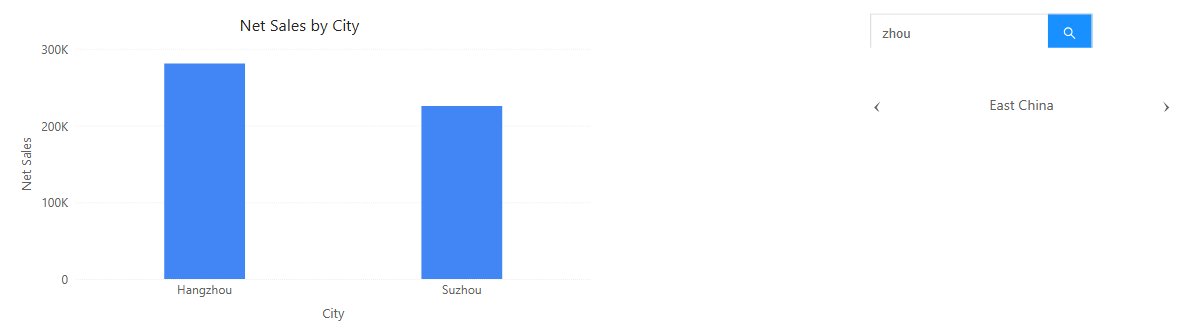
Search
Search filters linked components to the members whose name contains the keyword the reader types, for example Shang for Shanghai.
- Add Components → Filters → Search.
- In Data, choose the Analysis model and the Search Field, for example City.
- In Actions → Interactions, check the Linked components. Cascade other filters is available here too.
Readers type a keyword and press Enter or click the search button. Special characters are matched literally. The keyword is kept when another filter changes, and Clear selections in the toolbar removes it.
Paginate
Paginate shows one member at a time with ‹ and › arrows, for example to step through regions in a presentation.
- Add Components → Filters → Paginate.
- In Data, choose the Analysis model, the Field and, optionally, a Default member.
- Check the Linked components.
With no selection the control shows All. From the first member, ‹ returns to All; › stops at the last member and does not wrap around. Paging also works in edit mode, where it sets the default and marks the report as changed. Paginate has no Clear selections button and no relative defaults.
Related: Filters · Linking and Cascading Filters