
Appearance
Viewing, Pagination and Export
The viewer
Clicking a paginated report in the console opens it in the viewer. Set the parameters on the left, click View, and page through the result.
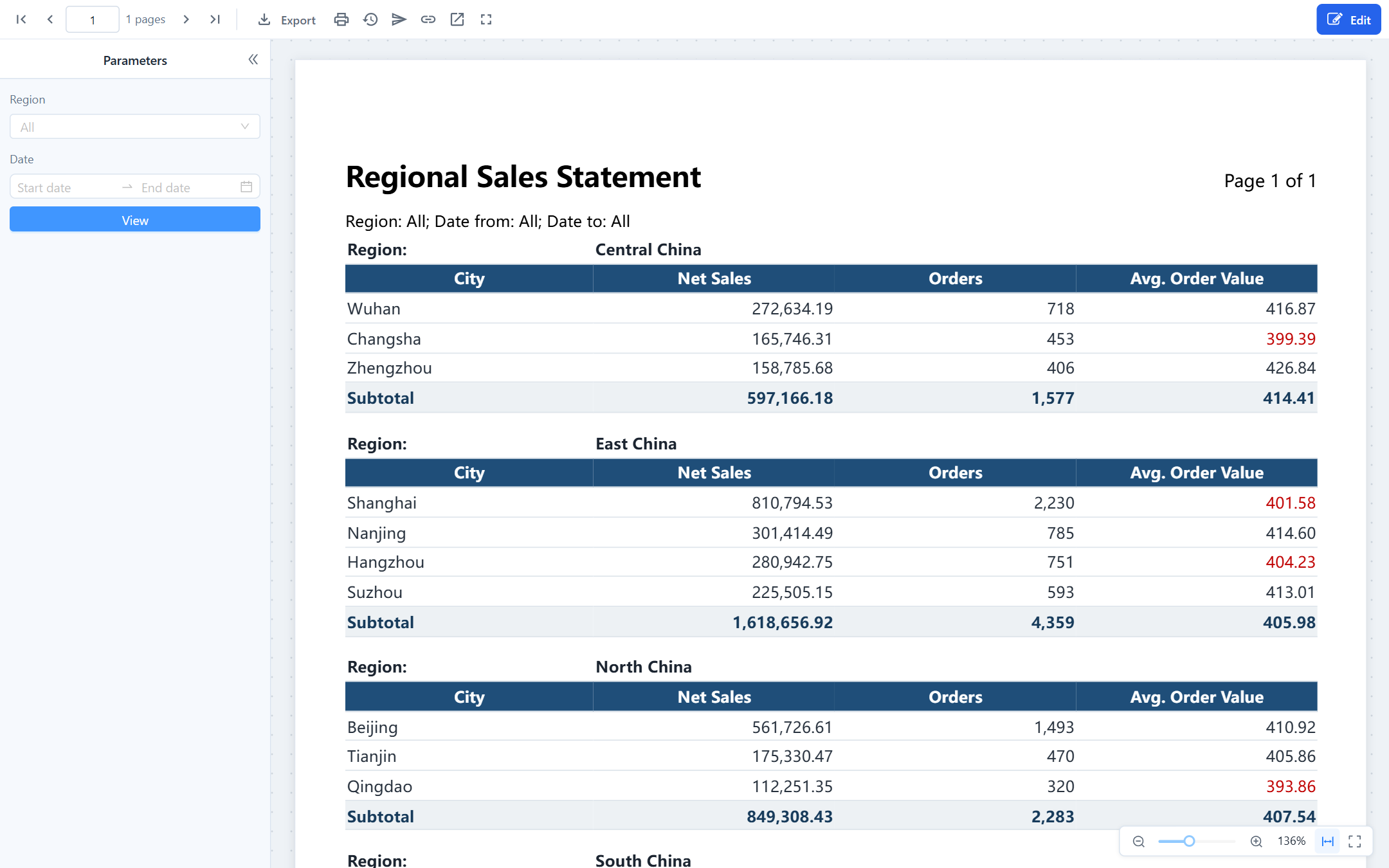
| Control | What it does |
|---|---|
| Parameters › View | Runs the report with the values entered. Required parameters are marked; the report does not run until they have a value. A list parameter with choices offers Select all and Clear; left empty it reads All and does not filter. A pair of from/to date parameters appears as one date range picker. |
| First / Previous / Next / Last page | Moves between pages. Pages are rendered once and cached, so paging does not query again. |
| Zoom | Fit width, fit page, actual size, or a percentage; also on the floating bar at the bottom right. |
| Full screen | Fills the browser window, also when the viewer is embedded in the console. |
| Export | Downloads the report. See Export formats. |
| Print (PDF) | Generates a PDF and opens it in a new tab for printing. |
| Report downloads | Files that were generated in the background. See Report Downloads. |
| Distribution | Scheduled delivery, for users with the manage schedules permission. See Distribution. |
| Copy link | Copies the viewer URL with the current parameter values, so the recipient opens the same view. |
| Open in new tab, Edit | Leave the console frame, or open the designer (needs write permission). |
The parameter panel sits on the left or above the pages, as the report author chose in Report properties › Parameter panel. Readers can collapse it but not move it.
How pages are cut
The report is laid out on the paper size, orientation and margins set in the report properties. Rows flow from one page to the next; the header and footer bands repeat on every page, and a table's column headers repeat as well when Repeat header on each page is on. A group with Page break after group starts every group on a new page.
When something does not look right, it is almost always one of these:
| Symptom | Cause | Fix |
|---|---|---|
| Validation error Column widths exceed the usable width when saving | The column widths add up to more than the page width minus the margins. The usable width is shown under Columns. | Narrow the columns, remove one, reduce the margins, or switch to landscape. |
| Crosstab columns cut off at the right edge | A crosstab never splits horizontally. With Fit to page width on, value columns are compressed down to 8 mm; beyond that the rest is cut. | Use landscape or a larger paper, filter the column dimension to fewer members, turn off totals you do not need, or swap the row and column dimensions. |
| Header or footer element pushed to the next page or clipped | The element is wider than the usable width or sits outside the band. | Leave Width empty so the element fills its column, or reduce its width. |
| Many short pages | Page break after group is on and the groups are small. | Turn it off, or keep it and accept the page count. |
| A blank line after each group | Space after group is set. | Set it to 0 if you do not want it. |
Preview limits and truncation
- The viewer shows at most 5,000 rows. When the data has more, the report ends with Data exceeds the preview limit, only the first N rows are shown, and subtotals and totals are calculated over those rows only. Exports are not limited this way.
- Exports stop at 200,000 rows for SQL datasets and 100,000 rows for model datasets. Beyond that the export fails with a message asking you to narrow the range with parameters. Model datasets share the analysis engine with dashboards, so long detail lists belong in an SQL dataset.
- A query that runs longer than 120 seconds is cancelled.
- A formatted Excel export above 20,000 rows switches to a faster writer that uses less memory; the result is the same workbook.
- An export made right after a preview with the same parameters reuses the preview's data and does not query again, unless the preview was truncated.
Administrators change these limits in the plugin's settings.xml: preview-max-rows, export-max-rows, model-export-max-rows, query-timeout-seconds, xlsx-fast-threshold-rows.
Export formats
The Export menu has two groups.
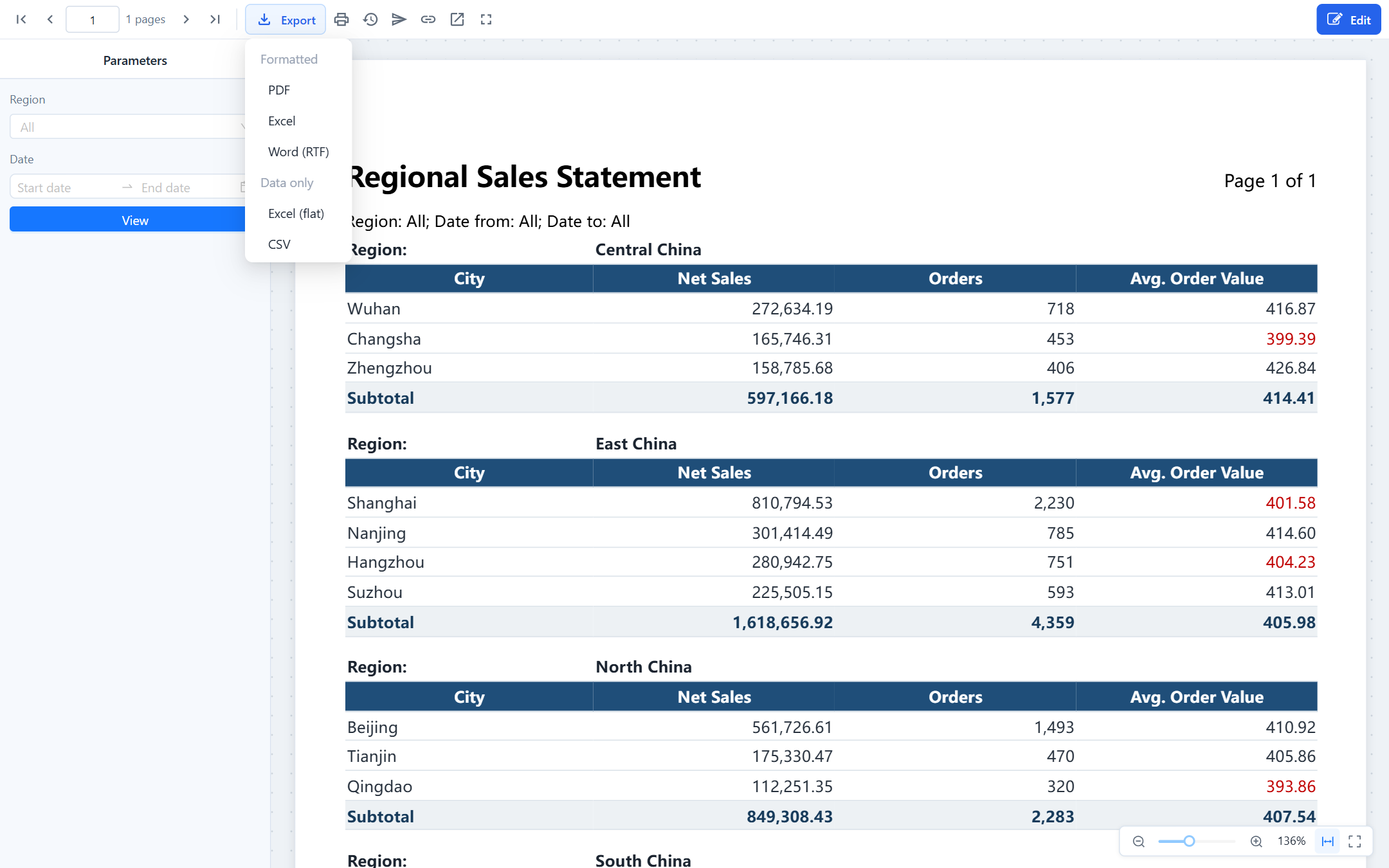
| Group | Format | What you get |
|---|---|---|
| Formatted | The pages exactly as the viewer shows them. Also used by Print. | |
| Excel | The report as one continuous table per sheet, with the page styles: fills, fonts, grid lines, column widths, frozen header rows. Not cut into pages. | |
| Word (RTF) | The same table layout in a document Word can open and edit. | |
| Data only | Excel (flat) | One row per record, group values repeated in every row, no subtotals, totals or merged cells, column titles as headers. Made for pivot tables. |
| CSV | The same rows as plain text, UTF-8 with BOM so Excel opens it directly; numbers without thousands separators, dates as 2026-10-27. |
Rules of the formatted Excel export:
- The header band is written at the top of each sheet and frozen. A table without groups also freezes its column header row.
- The footer band goes into Excel's page footer, so it prints on every page; page numbers become Excel page numbers.
- A group with Page break after group becomes one sheet per group, named after the group value. The grand total stays on the last sheet. With Restart page numbers for each group, PDF and print restart at page 1 for every group.
- Columns in the table-type outputs (Excel, Word) are cut wherever an element starts: every table column edge and the left edge of every header or footer element. An element that starts in the middle of a column adds a narrow extra column with merged cells on every row. The designer places header and footer elements on column edges for you; if you position one by hand, validation warns you.
Which format to choose:
| You want to | Use |
|---|---|
| Print, send, archive | |
| Keep working with the numbers, build a pivot | Excel (flat); CSV when the data is large |
| Edit the text in Word | Word (RTF) |
| Hand over a formatted workbook | Excel |
Data exports are the fastest and need the least memory because they skip layout. PDF takes the longest; formatted Excel uses the most memory.
Exports and prints run as background tasks. Anything that finishes within a few seconds downloads at once; larger files continue in the background and you are notified when they are ready. See Report Downloads.
Large reports
- Summaries from a model, details from SQL. A model dataset is calculated by the analysis engine and held in memory as a whole result; it is limited to 100,000 exported rows and runs one at a time in the background. A detail listing of tens of thousands of rows should be an SQL dataset.
- Narrow with parameters. A date range or a region parameter keeps each run to the rows that are needed, and lets a distribution produce one file per value instead of one huge file.
- Choose a data export for large row counts.
Viewer URL parameters
The viewer address is …/datafor/api/repos/<path with ":" instead of "/">/viewer, for example /datafor/api/repos/:public:Docs:Regional Sales Statement.pagereport/viewer. Copy link produces it for you. These query parameters can be added:
| Parameter | Values | Effect |
|---|---|---|
p_<name> | A value; repeat the key for a multi-value list, p_region=East&p_region=North | Sets a report parameter. Dates are yyyy-MM-dd, date-times yyyy-MM-dd HH:mm:ss, booleans true/false. |
paramPanel | left, top, collapsed, hidden, combinable as top,collapsed | Overrides the panel position; hidden runs the report at once with the URL and default values. |
toolbar | false | Hides the toolbar; paging moves to the floating bar at the bottom right. |
locale | en-US, zh-CN, … | Forces the interface language of the viewer. |
A complete embed URL therefore looks like …/viewer?toolbar=false¶mPanel=hidden&p_region=East%20China. Only the viewer page honours paramPanel and toolbar; the designer's preview always follows the report properties. For sign-in inside an iframe, see Signing In Users.