
Appearance
Page Settings
Page settings apply to the whole report page. Click an empty part of the canvas: the panel title changes to Page and shows three tabs, Components, Style and Settings.
Style tab
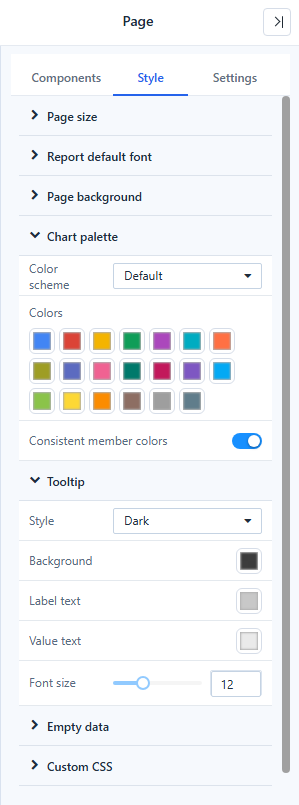
| Group | Settings | Notes |
|---|---|---|
| Page size | Custom, Size (Screen(16:9), Screen(4:3), Pad, Phone, LED screen), width and height | See Page size below. |
| Report default font | System default or a font from the list | Used by every chart element that has no font of its own, including tooltips. |
| Page background | Background Color, Image | |
| Chart palette | Color scheme, Colors, Consistent member colors | See Colors and Color Schemes. |
| Tooltip | Style (Dark, Light, Custom), Background, Label text, Value text, Font size (10–16 px, default 12) | Applies to the data tooltips of all charts on the page. See Tooltips. |
| Empty data | Show empty data message, Empty data text, Font | The default for all components; a component can override it. See Empty Data and Error Messages. |
| Custom CSS | CSS for the page |
New reports take their font, colour scheme, tooltip style and empty-data message from Settings › General › System configuration › Reports. Changing those settings does not change existing reports.
Settings tab
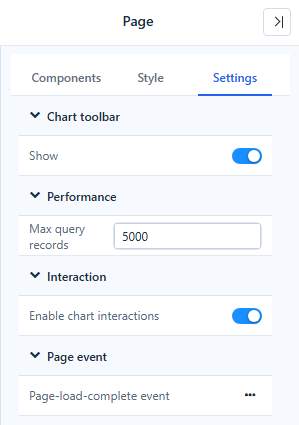
| Group | Setting | Default | What it does |
|---|---|---|---|
| Chart toolbar | Show | On | Shows the component toolbar (zoom, export, conditions…) on the components. |
| Performance | Max query records | 5,000 (from System configuration) | The most rows one component query returns. A component that hits the limit shows a warning icon: Showing the first … of … rows. Range 100–200,000. |
| Interaction | Enable chart interactions | On | Lets a click on a chart filter the other charts. See Cross-filtering. |
| Page event | Page-load-complete event | Empty | A script that runs when the page has loaded. |
Page size
- Open Style → Page size.
- Choose a Size, or turn on Custom and enter the width and height.
- Check the layout in Preview.
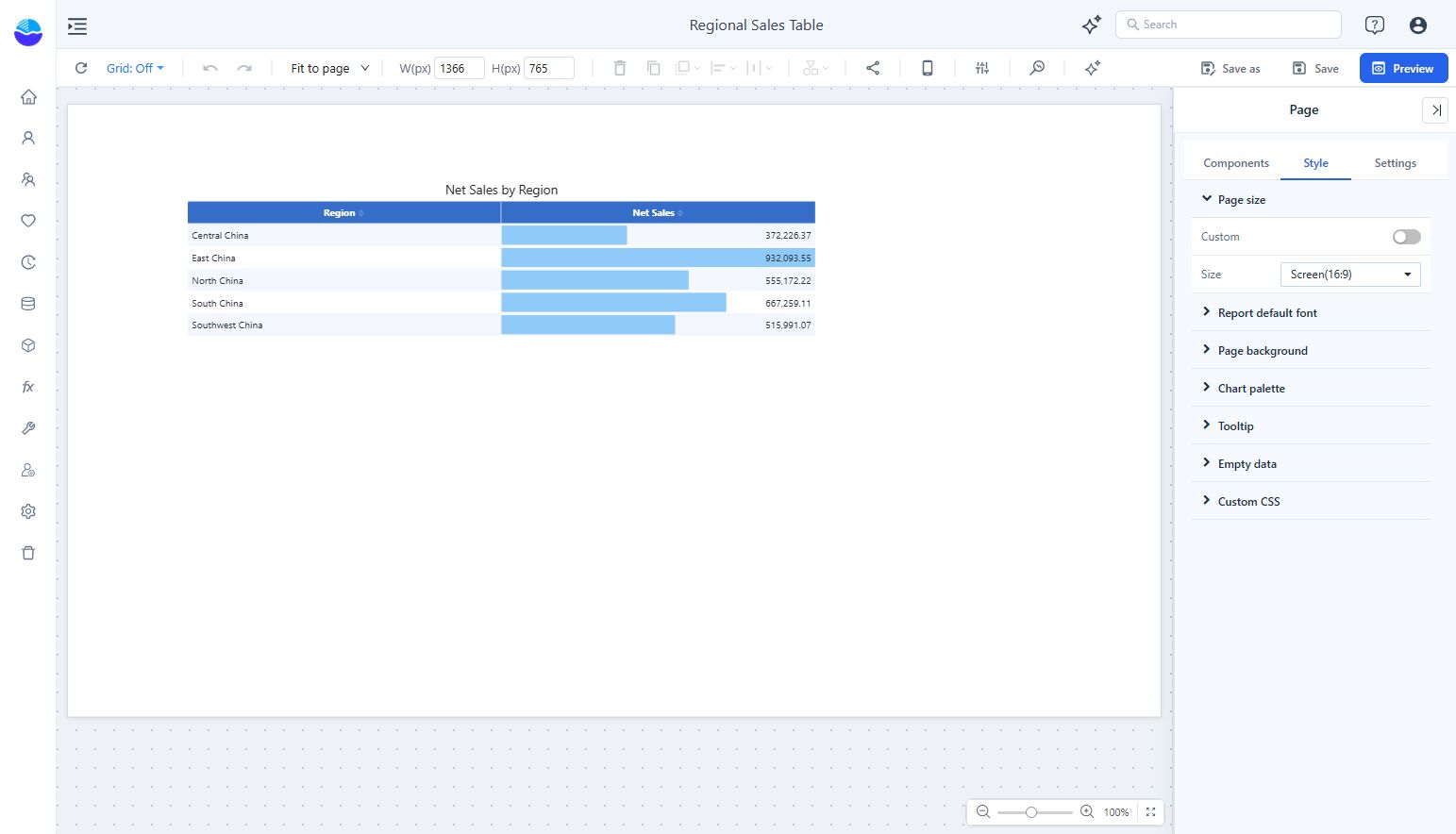
The toolbar fields W(px) and H(px) show the size of whatever is selected: the page when nothing is selected, otherwise the component.
Display mode
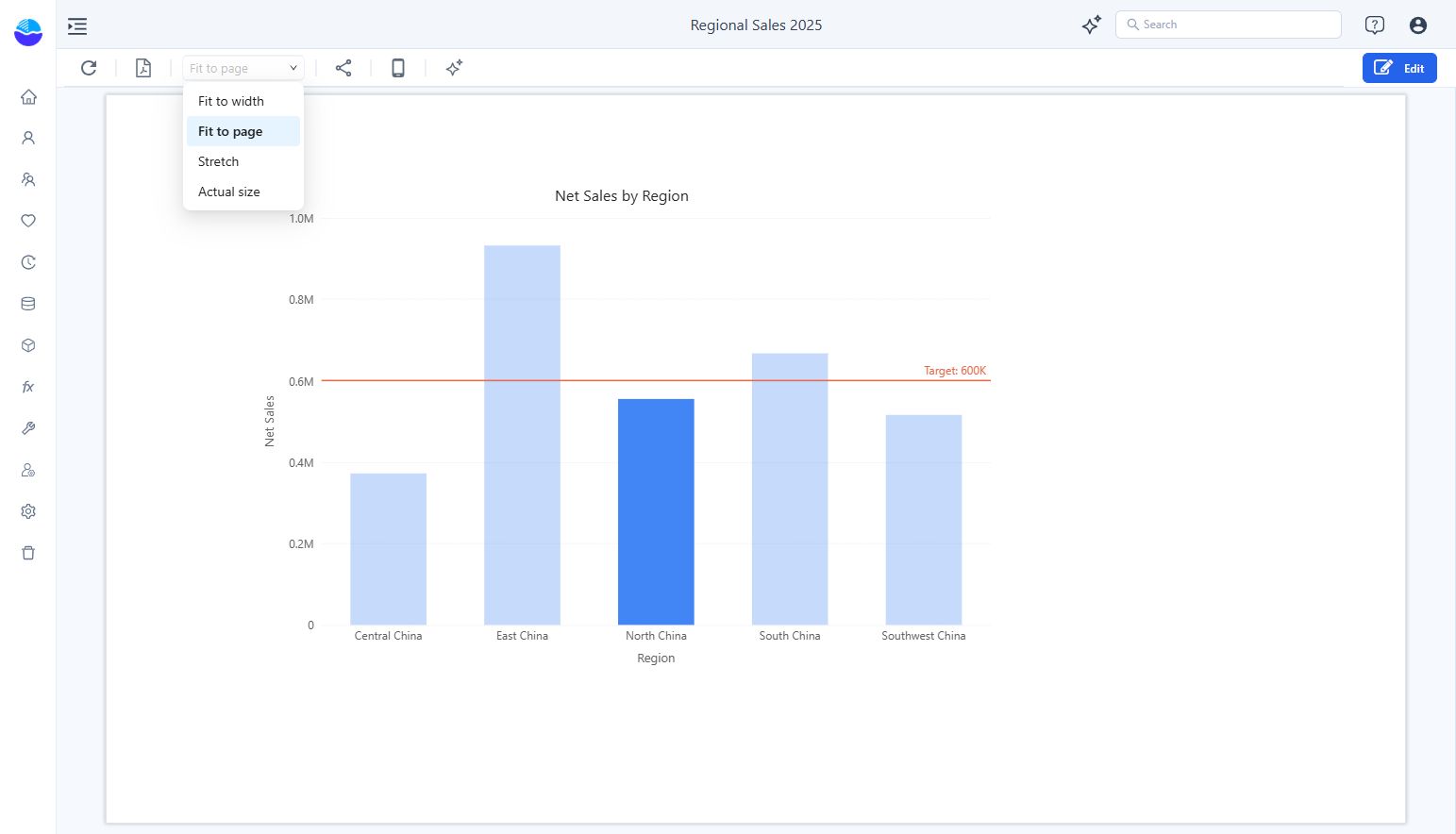
The toolbar list next to the zoom controls sets how the page fits the reader's window:
| Mode | Result |
|---|---|
| Fit to page | The whole page fits in the window. |
| Fit to width | The page uses the window width; tall pages scroll. |
| Stretch | The page fills the window; proportions can change. |
| Actual size | The page is shown at its designed size. |
For phones, design a separate mobile layout.
Related: Adding Components · Report Editor Basics