
Appearance
Marker map
Show a measure as markers at the centres of regions on a GeoJSON boundary map, for example sales by province as markers sized by value. It needs no online map service. To colour the regions themselves, use Filled map; to place points by coordinates or addresses on an online basemap, use GIS marker map or Mapbox/Amap.
Bind regions and choose the map
- Add Components → Charts → Maps → Marker map (480 × 360 px) and select an Analysis model.
- Bind Geographic field (region names or codes) and Measure.
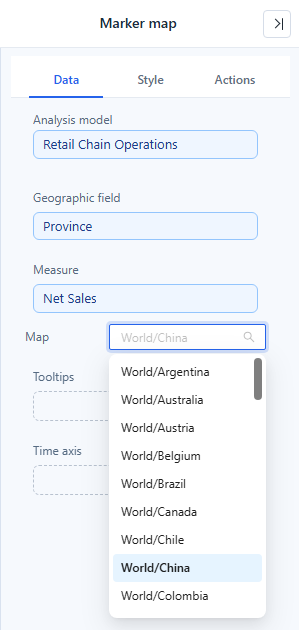
- Choose the Map in Data. The initial selection is World; the list contains the maps maintained in GeoJSON Map. Changing the map resets the saved centre and zoom.
- Add Tooltips, Time axis and Filters as needed.
- Format it in Style (below), then test a few known regions.
On the United States map, the markers sit at the state centres and are sized by store sales:
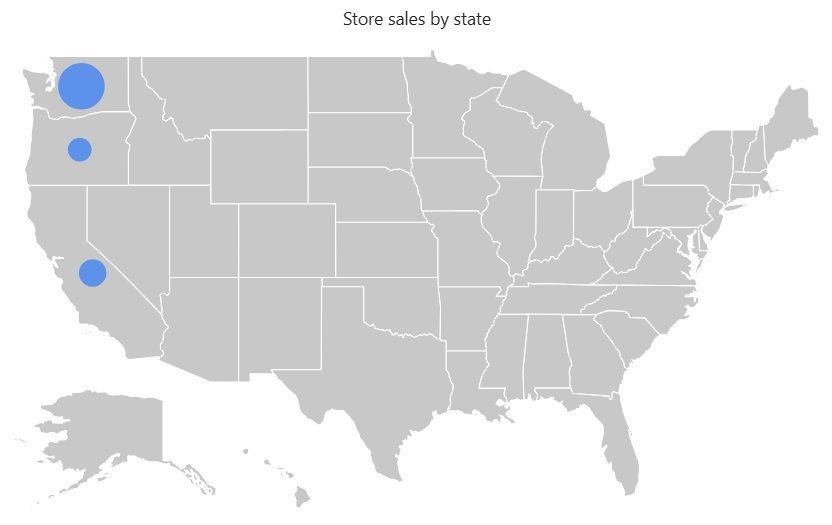
The marker of a region is placed at the region's centre point, which is set in the GeoJSON Map tool.
Matching regions
Region values are matched exactly as for the Filled map: first the region name, then the administrative code, then the aliases (details).
- One marker per region: rows whose values resolve to the same region, such as
广东,粤and广东省, are merged into one marker. Their values are summed and the tooltip lists all spellings. An average or a ratio is summed too, so keep one spelling per region when the measure is not additive. - Unmatched regions: in edit mode a yellow box at the top left reads {count} of {total} regions do not match the current map; hover it for the names (up to 30). It is not shown in view mode. A value that matches a different region, such as the US state "Georgia" on the World map, is not reported, so choose the map that fits the data.
- No data: when the query returns no rows, the grey map stays and the empty-data message is drawn over it. The map can still be zoomed and panned.
Style
| Group | Option | Effect | Default |
|---|---|---|---|
| Data colors | Ripple color | Marker colour. | — |
| Data labels | Labels on the markers. | — | |
| Marker settings | Marker image(SVG) | Uses the path of an SVG file as the marker shape. Hides Enable animation. | Default marker |
| Enable animation | Ripple effect around the markers. | Off | |
| Size type | Linear, Square or Logarithmic scaling by the measure. | Linear | |
| Size | Overall marker size, 2–90 %. | 10 % | |
| Region | Show region name | Draws region names. | Off |
| Font | Font of the region names. | — | |
| Region color | Fill colour of the regions. | — | |
| Border | Region border. | — | |
| Pan and roam | Pan and roam | Hide, Zoom, Pan or Zoom and pan for readers. | Zoom and pan |
| Tooltip | Show Tooltip | Data tooltip on hover (Tooltips). | On |
Markers are at least 6 px wide, so zero and very small values stay visible and can be hovered; larger values still scale. Negative values are drawn at the minimum size.
Working with the map
- Mouse wheel in the editor: when Pan and roam includes zooming, the wheel scrolls the report page; hold Ctrl (⌘ on Mac) and scroll, or pinch on a touchpad, to zoom the map. In view mode and in the enlarged view the wheel zooms the map.
- Chart switch: Marker map and Filled map are listed first for each other; the fields and the selected map carry over.
- Aspect ratio: maps added in this version keep the shape of the GeoJSON map inside the component instead of being stretched.
- China map: the South China Sea islands are drawn in a framed inset at the bottom right. See the Filled map page, including the note on saved views in reports from earlier versions.
Opening reports made before 10.00
- Rows with several spellings of one region used to produce stacked markers with partial values; they now give one marker with the summed value.
- Unmatched rows used to be dropped without notice; they are now listed in edit mode.