
Appearance
File Dataset
A file dataset stores the rows of uploaded CSV or Excel files in tables that Datafor manages. Once uploaded, the dataset appears as a datasource that you can build Analysis Models on. Each upload is kept as a separate batch, so you can add more files later or remove one upload without touching the others.
Accepted files: .csv, .xlsx, .xls.
Who can upload
- Creating a dataset requires the Create content capability. Users without it do not see the upload panel.
- Adding files to an existing dataset (Import) requires Edit permission on that dataset.
- Batch delete requires Delete permission on that dataset.
- Since 10.00, other users with Read on a dataset can build models and reports on it, but only administrators can write custom SQL on it: SQL Views, calculated columns,
whereconditions and row access conditions are refused for non-administrators withSQL_FRAGMENT_FORBIDDEN:<connection>, because an uploaded dataset is served by an engine inside Datafor. See Data connections: targets and custom SQL.
Create a dataset
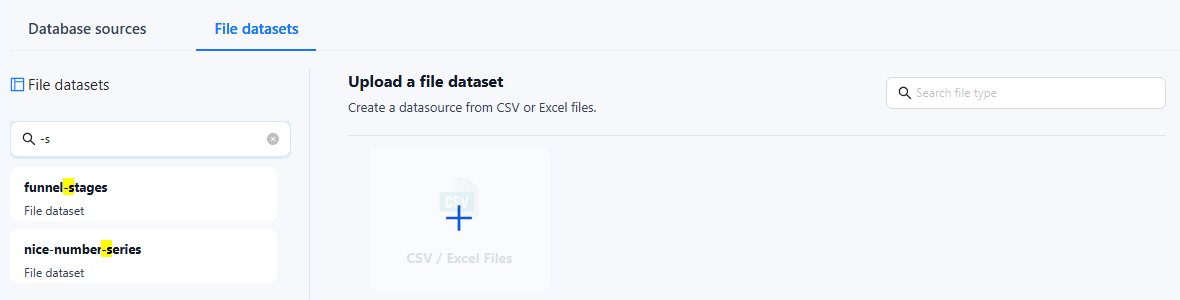
Open Data › Datasource and select the File datasets tab.
Under Upload a file dataset, click + on the CSV / Excel Files card and choose a file. If the panel is not shown, click New connection (+) above the dataset list.
Fill in the upload dialog (see below) and click Upload.
The upload runs in the background. The dataset then appears in the list on the left; its Status turns green when the import is finished.
Excel files
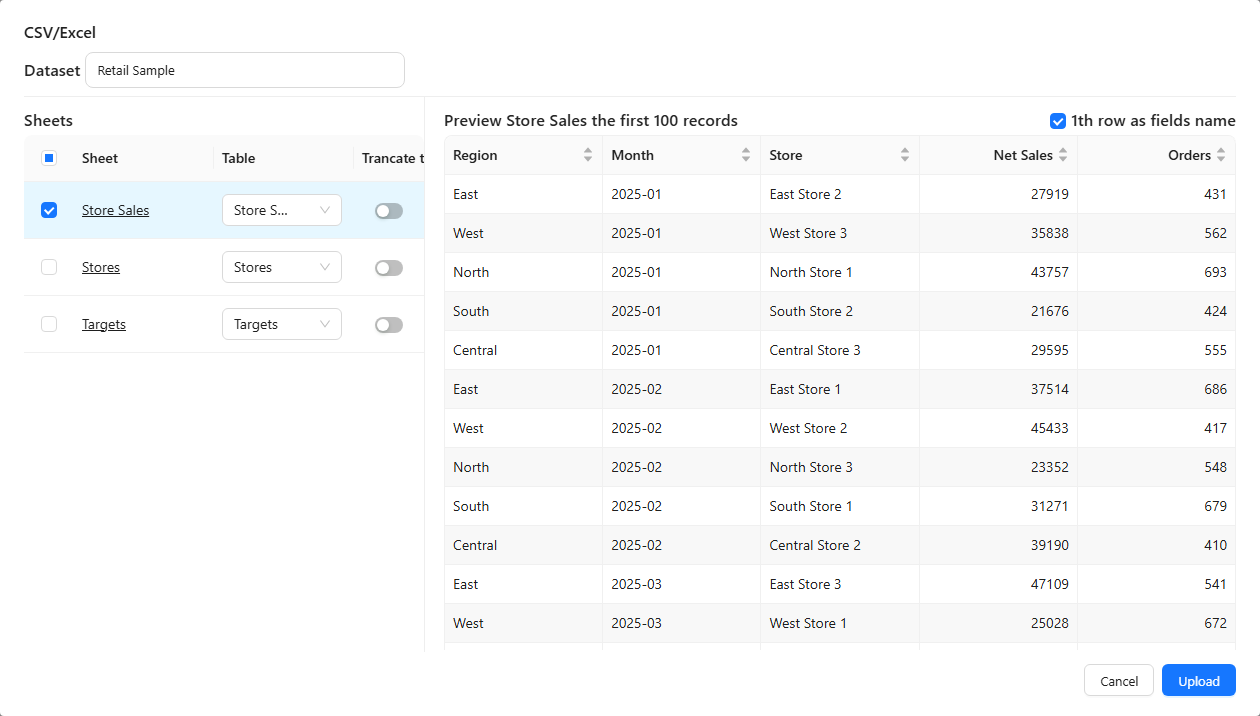
| Field | Meaning |
|---|---|
| Dataset | Name of the new dataset. It must not already exist. Fixed when you import into an existing dataset. |
| Sheets | Select the sheets to import. Click a sheet to preview its first 100 records. |
| Table | Target table for each selected sheet. Pick an existing table or type a new name and click Add. |
| Truncate table | Empty the target table before importing this sheet. Without it, rows are appended. |
| 1th row as fields name | Use the first row as column names. |
CSV files
| Field | Meaning |
|---|---|
| Dataset | Name of the new dataset. Fixed when you import into an existing dataset. |
| Table | Target table. Pick an existing table or type a new name and click Add. |
| File origin | Character encoding of the file, for example UTF-8 (default), GB18030, Big5, Shift_JIS, windows-1251 or ISO-8859-1. Change it if the preview shows garbled text. |
| Delimiter | Comma (default), pound (#) or Tab. |
| 1th row as fields name | Use the first row as column names. |
The preview shows the first 100 records and updates when you change the encoding or delimiter.
CSV files saved as "CSV UTF-8"
Excel's CSV UTF-8 format starts the file with a byte order mark (BOM). Since 10.00 the import removes it, so the first column name is exactly the header text. Earlier releases kept an invisible character (U+FEFF) at the start of the first column name: the column looked normal in the model, but MDX, calculated fields, and other references by name did not match it. If references to the first column of a dataset imported before 10.00 fail, import the file again.
Add files to a dataset
- Select the dataset in the File datasets list.
- Click Import (the upload icon) and choose a
.csv,.xlsxor.xlsfile. - Choose the target table. When you import into an existing table, map each Source column to a Target column and clear the columns you do not want to import.
- Click Upload.
Manage uploads
Selecting a dataset lists one row per upload:
| Column | Content |
|---|---|
| File name | The uploaded file. |
| Tables | Number of tables the upload wrote to. Hover to see their names; click to preview the data. |
| Records | Number of imported rows, per table on hover. |
| Upload time | When the file was uploaded. |
| Uploaded by | The user who uploaded it. |
| Status | Green: finished. Red: failed; click the dot to see the error. A spinner means the import is still running. |
| Preview | Opens the imported data. Available when the import is finished. |
To remove uploads, select their rows and click Batch delete. This deletes the rows that those uploads added to each table; other uploads stay. To remove the whole dataset, open its ⋮ menu in the dataset list and select Delete.