
Appearance
Access Control List
ACL (Access Control List) is a crucial feature in Datafor that enables fine-grained control over user access to reports, data sources, models, and folders. With ACL, you can ensure resource security and restrict access based on user roles and permissions.
For the complete relationship between User Types, Business Roles, ACLs, RLS, and OLS, see Permission Evaluation Overview. An ACL grant does not replace data policies, and an unchecked permission is not an explicit deny that cancels another matching grant.
1. What is ACL?
ACL is a permission control mechanism used to define access rights for resources. In Datafor, resources include data sources, models, report files, and folders. ACL allows administrators to set permissions for these resources. The available permission levels are:
- View: The user can view the resource content.
- Edit: The user can modify the resource.
- Delete: The user can delete the resource.
- Full Control: Grants the user complete control over the resource, including the ability to manage permissions for other users or roles.
2. User and Role Authorization
ACL allows you to grant specific resource access to users and roles.
- Users: Individual users who can be assigned different roles and permissions.
- Roles: A collection of permissions assigned to a group of users. Managing permissions through roles simplifies access control.
2.1 Assigning Permissions
Permissions must be explicitly granted to users, roles, or user types for each resource (such as reports, data sources, or models). Follow these steps to assign permissions:
Navigate to the Manage page of the resource.

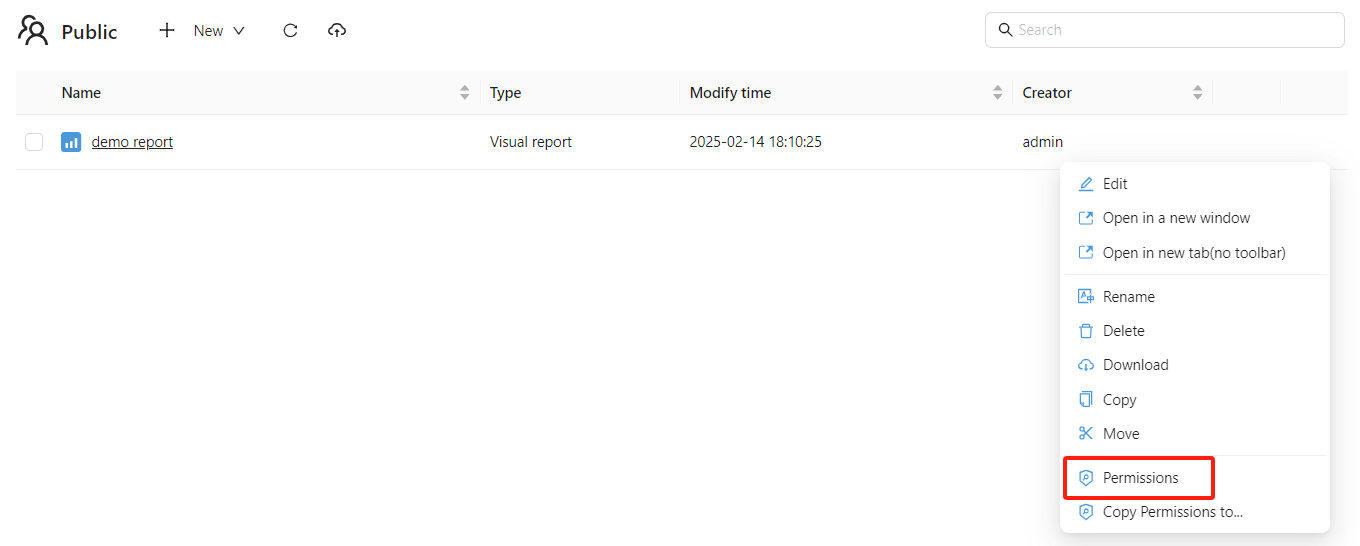
Locate the resource management menu and click “Permissions” to open the permission settings interface.
Select the user, role, or user type to grant permissions, and assign View, Edit, Delete, or Full Control rights.
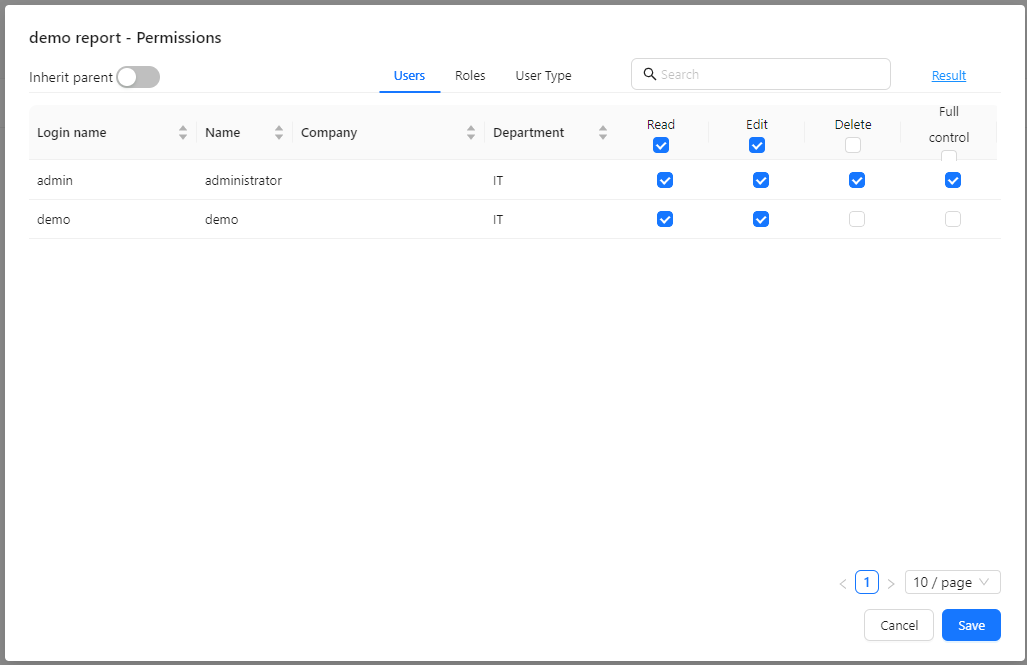
Save the changes.
2.2 User-Type-Based Authorization
Datafor provides three user types:
- Read-Only Users: Can only view resources but cannot modify or delete them.
- Creator Users: Can edit and create reports, data models, and other resources.
- Administrators: Have full control over all resources, including permission management.
ACL can also grant access based on user types. For example, administrators may have full control over all resources, while read-only users can only view them.
-jE98SSI8.png)
3. Folder and Report Authorization
Folder and report authorization in Datafor has certain restrictions:
- Private Folders: Reports and folders within private directories cannot be shared with other users or roles.
- Public Folders: Only reports and subfolders in public folders can be authorized for access by other users or roles.
4. Permission Inheritance
Reports and subfolders with Inherit parent permissions enabled use their parent's effective ACL. If the parent also inherits, follow the chain to the nearest non-inheriting ACL. Disabling inheritance selects the resource's own entries; it does not add a local deny on top of the parent grants. Parent changes affect descendants that continue to inherit, not descendants with their own ACLs.
For grant combination, folder-operation checks, and owner/administrator exceptions, see File and folder ACLs.
-RX3RrCwn.png)
5. Viewing Permissions
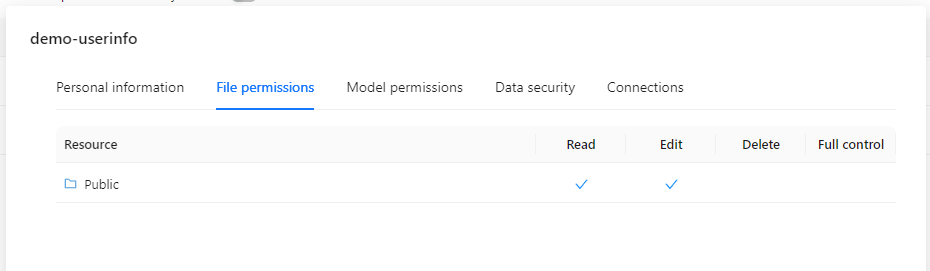
In the User and Role Management interface, you can click "Details" to view all resources assigned to a specific user or role. These resources may include data sources, models, reports, and folders.
-C2OFyjXF.png)
On the "Details" page, you can see which resources the user or role has access to and their specific permissions (View, Edit, Delete, etc.).
6 Modifying Permissions
You can update permissions anytime through the Permissions management interface. This allows you to add, remove, or adjust permissions for users and roles as business requirements evolve.