
Appearance
LLM Permission Management
Overview
Datafor AI Agent allows administrators to assign usage permissions for specific Large Language Models (LLMs) to selected users and roles. Through the Permission Management interface, you can:
- Control which users or roles are allowed to use a given LLM
- Assign different permission levels (Read / Edit / Delete / Full Control)
- Manage or revoke access at any time
This guide explains how to view, add, modify, and remove permission assignments for an LLM.
1. How to Access the LLM Permission Management Interface
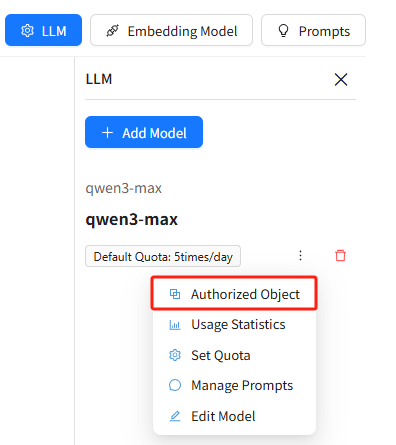
- Open the left navigation menu and go to AI Agent → LLM
- Select an LLM from the model list (e.g., qwen3-max)
- Click the More Actions (…) icon beside the model
- Choose Permission Management
The permission management window for the selected LLM will then open.
2. Understanding the Permission Management Interface
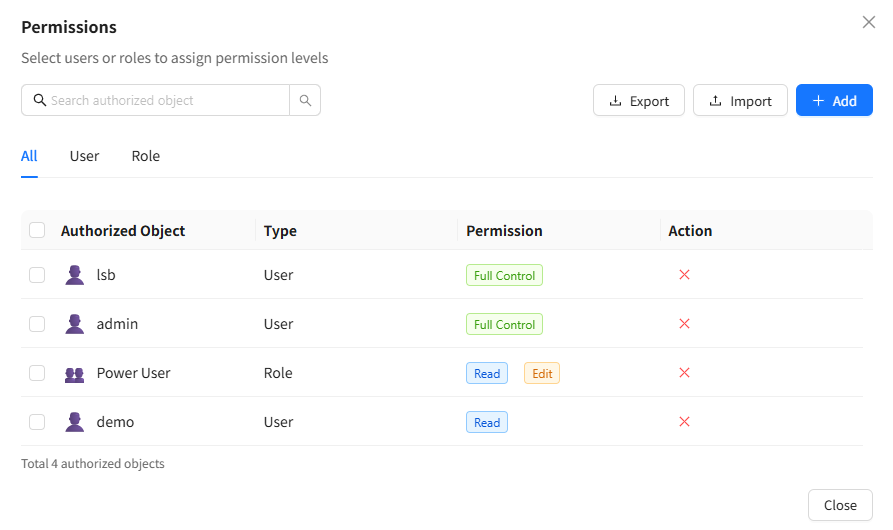
After entering the permission management window, you will see all users and roles currently authorized to access the selected LLM.
Top Action Bar
- Search Bar – Search by username, role name, email, etc.
- Export / Import – Export or import permission configurations (if enabled)
- + Add – Add new users or roles to the permission list
List Fields
| Field | Description |
|---|---|
| Authorized Object | Name of the user or role granted access |
| Type | Indicates whether the object is a User or Role |
| Permission | The permission level assigned |
| Action | Button to remove the authorization |
3. How to Add a New Authorized User or Role
Click the + Add button to open the add-permission dialog.
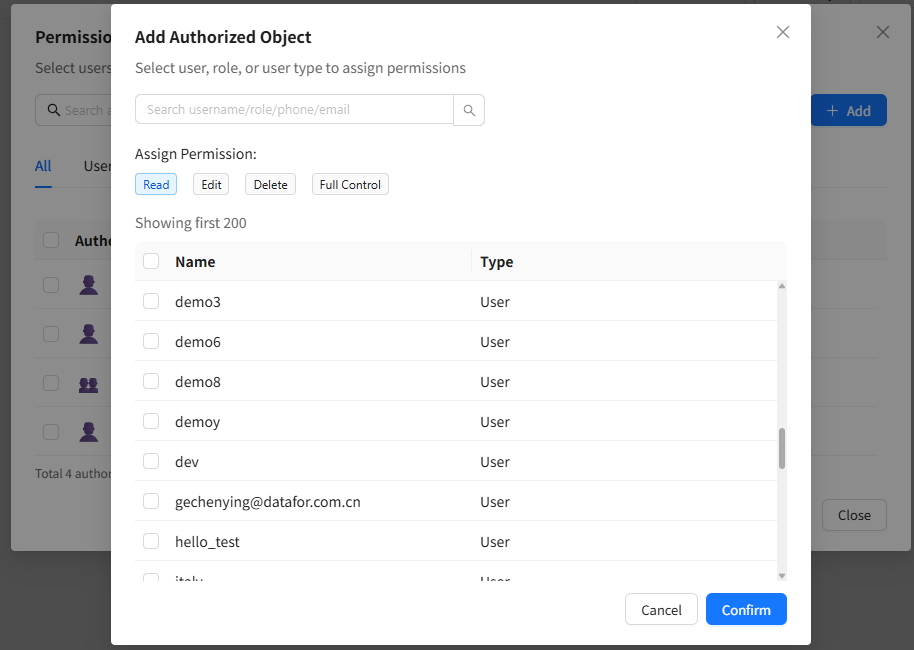
- Use the search bar to locate a user or role
- Supports searching by username, role name, phone number, or email
- Select the permission level you want to assign:
| Permission Level | Description |
|---|---|
| Read | Allows using the LLM (within assigned quota) |
| Edit | Allows editing LLM settings |
| Delete | Allows deleting the LLM |
| Full Control | Grants full administrative rights, including managing permissions |
- Select one or multiple users/roles
- Click Confirm to complete the assignment
4. Modifying or Removing Permissions
Removing Permissions
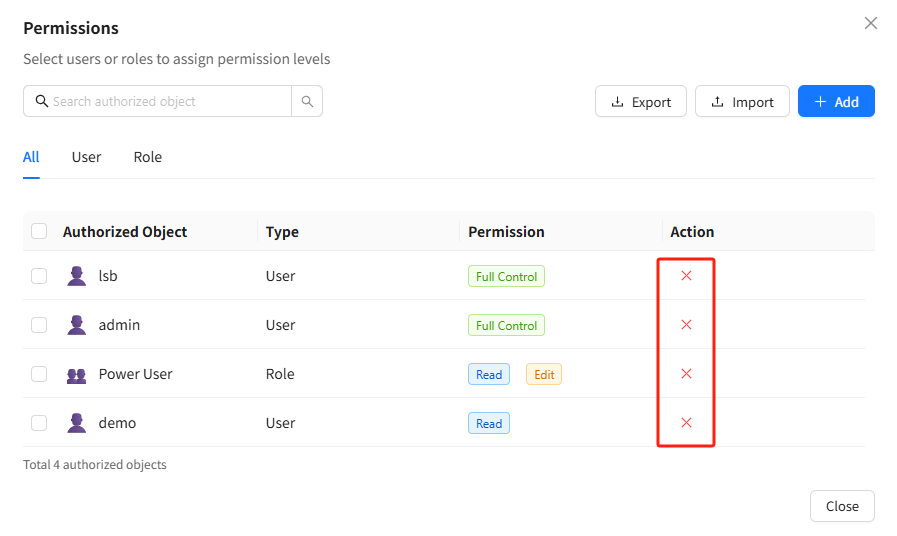
To revoke access, click the × icon at the end of the corresponding row in the permission list. The user or role will immediately lose access to the LLM.
Modifying Permission Levels
The current version uses a “remove then reassign” approach for permission changes:
- Remove the existing permission entry
- Click + Add again and assign the new permission level
5. Recommendations for Assigning Permissions to Users vs. Roles
To manage permissions efficiently, especially in larger organizations, consider the following best practices:
| Scenario | Recommended Approach |
|---|---|
| Large organizations | Prefer role-based authorization to avoid configuring many individual users |
| Sensitive or high-value models | Grant Full Control only to administrators |
| Regular business users | Assign Read to prevent accidental configuration changes |
| Report builders or modeling teams | Use roles such as Power User or Business Analyst for consistent access control |
Note: LLM permissions do not inherit from report or folder permissions. They must be configured independently.